About Reflect Video

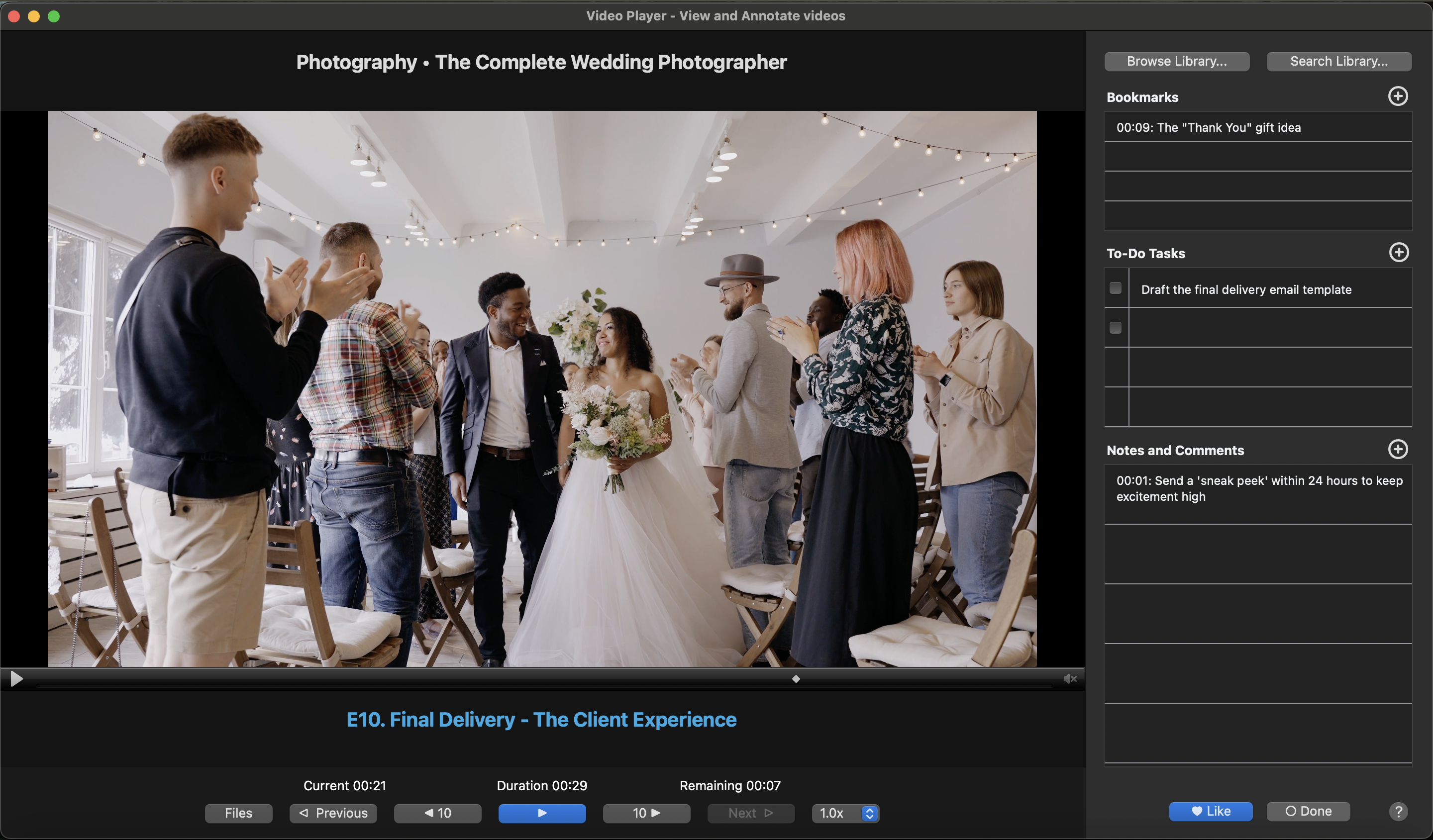
Reflect Video is a Mac application designed to help you watch, analyze and reflect on video content. It will play a folder of videos automatically, no need to work out which one is next. Have you ever wanted to create bookmarks, notes, and to-do tasks right in your video player, well now you can! With intuitive controls and advanced features, Reflect Video makes it easy to review and annotate video content.

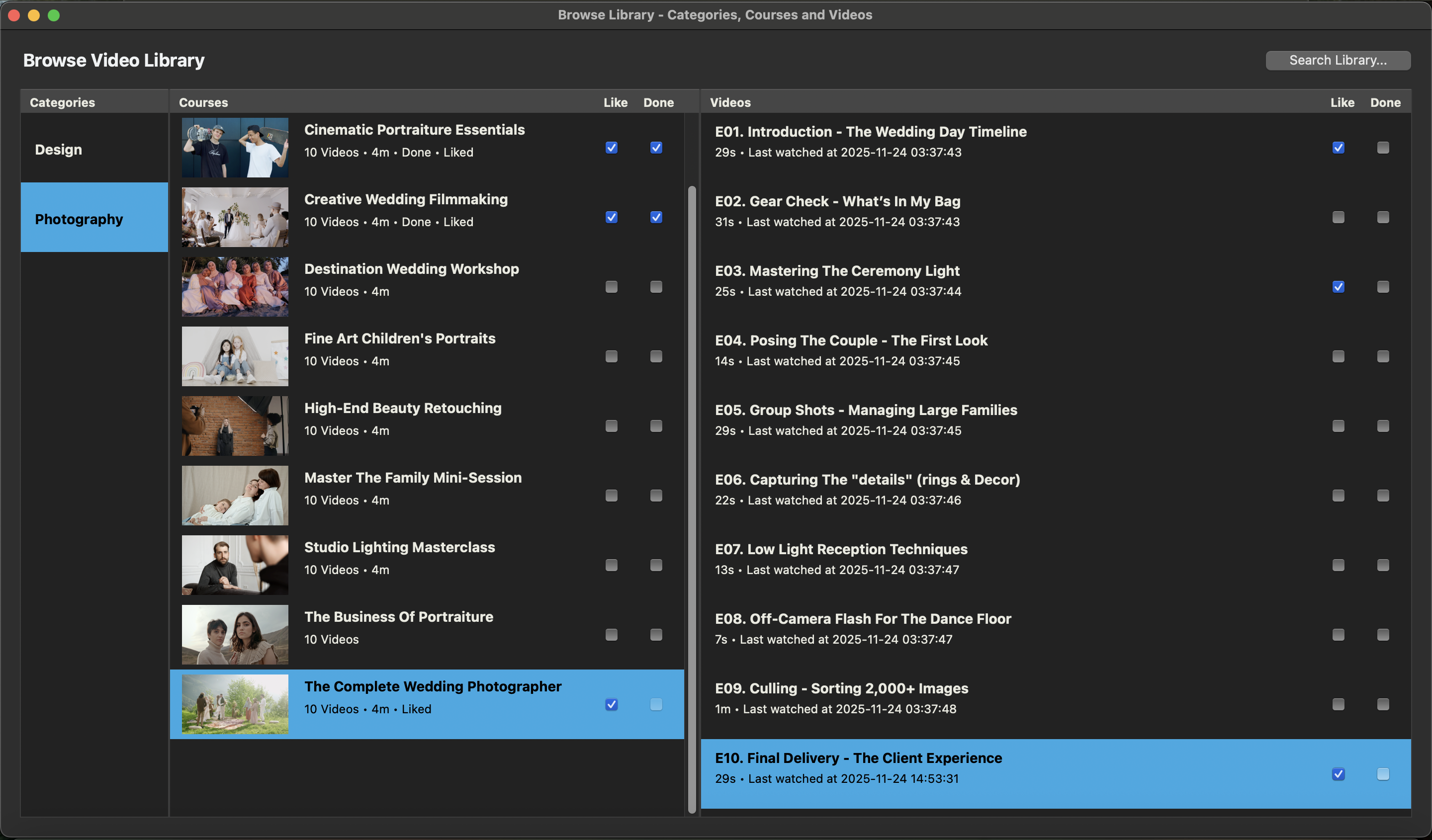
Reflect video creates a library of your imported video categories and courses with your downloaded videos, so you can work offline. We don't collect or share any video data or personal information, it is completely private to you. It's your personal learning journey!

Whether for professional development, training, or personal reflection, Reflect Video provides the tools you need to get the most out of your videos.

Download Reflect Video

A Look Inside

Take a look at Reflect Video in action

Getting Started

Follow these steps to start using Reflect Video

1
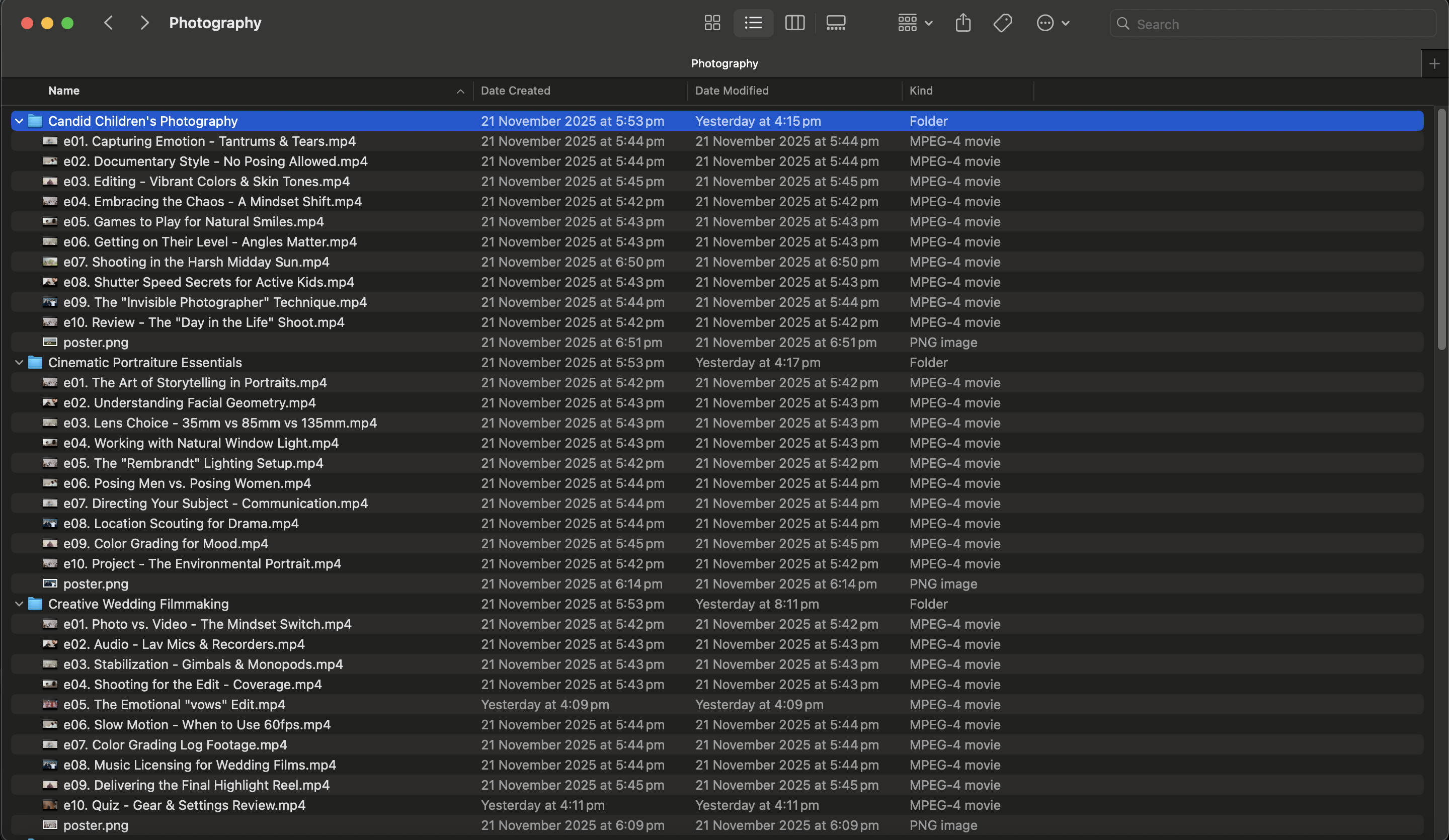
To get started, select a category folder to import. All of the course folders inside the category folder will be imported and every video (m4v, .mp4, .mov) file will be added to or updated in your Reflect Video Library.
2
Videos will autoplay when selected in the Video Player, Library Browser or Search windows. You can navigate to videos from any window. Videos remember when they were last played and continue playing. Played videos are added to your history menu.
3
All videos in a folder will autoplay in folder order. You can go back to the previous or go ahead to the next video, or skip forward or backwards 10 secs in the currently playing video.
4
You can add Bookmarks, To-do Tasks and Notes/comments to each video and these will remember the timestamps they were created and open the video at that position. Right-click on Bookmarks, To-do Tasks and Notes to edit, adjust the timestamp or delete.
5
Shortcuts are available for editing functions. B for Bookmarks, T for To-Do Tasks, N for Notes. Spacebar starts and stops the currently playing video, < > skip backwards and forwards 10 secs, or fame by frame using keyboard arrrows.
6
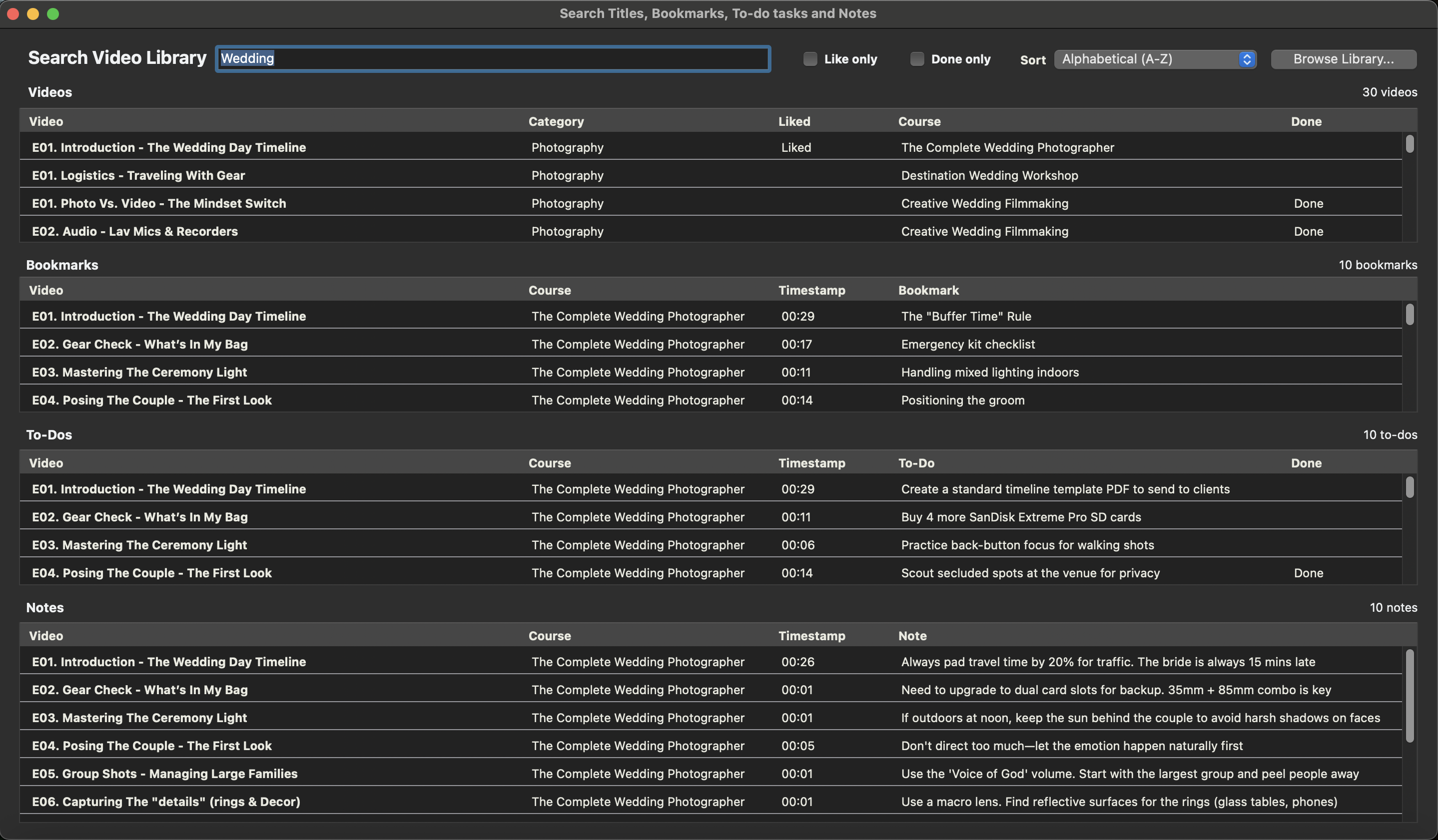
Like and Done are available for each course and all videos and you can search and sort, so you can find your favorites to rewatch and skip the ones you've completed.

Key Features

Easy Video Import
Import videos by selecting a course category folder. All course folders and videos files (mp4, mov, and m4v) will be linked in your library.

Advanced Playback
Full control over video playback with pause, scrubbing, replay and skip 10 secs, next and previous and frame-by-frame navigation.
Annotation Tools
Bookmark important moments, add notes, and to-to tasks, all with timestamps to return to at any time. Mark videos as Liked or Done.
Automated Interface
Videos playback automatically once you import a folder, with videos continuing automatically through the folder, even in the background.
Progress Tracking
Videos remember your progress and playback speed so you don't have to remember where you were up to, for every video in your library.
Browse and Search
Browse your videos by category and course folders or use the powerful search - by titles, bookmarks, to-to tasks or notes, like and done.

Get Reflect Video

Reflect Video is available on the Mac App Store

System Requirements: macOS 11.0 Big Sur or greater

Frequently Asked Questions

Find answers to common questions about Reflect Video

What video formats does Reflect Video support?

Reflect Video supports common video formats including MP4, MOV, and M4V files. When you import a category folder, all compatible video files in those folders will be automatically added to your library.

Can I use Reflect Video offline?

Yes! Reflect Video creates a local library of your imported videos, so you can access and watch your videos completely offline. The app doesn't require an internet connection to play videos or access your bookmarks, notes, and tasks.

Why do I have to select a category folder to import all the courses in that folder?

Selecting a category folder allows Reflect Video to efficiently import and organize all course folders and videos within that category structure. This approach ensures that your library maintains the same organizational hierarchy as your original folder structure, making it easier to browse and navigate your courses. When you select a category folder, the app automatically discovers all course folders inside it and imports all compatible video files (MP4, MOV, and M4V) in one operation, saving you time and maintaining the logical grouping of your content.

Need Help?

If you have any questions, encounter issues, or need assistance with Reflect Video, our support team is here to help.

Support Email

support@webobjectives.com.au

We typically respond within 24-48 hours during business days.

×